
A BallotBox QuestionSet defines the Questions that will be asked of Voters responding to a Poll. For each Question, the QuestionSet also defines the valid responses, termed Choices, that a Voter can make. Each Question can have one of three types of Choices:
Ballots and the responses Voters make on them are considered to be part of the Poll, but QuestionSets and their Questions and Choices are defined separately and then linked, or assigned, to one or more Polls. It is common to have multiple Polls that ask the same questions and allow the same responses. Having the QuestionSet defined separately allows one QuestionSet to be shared among multiple Polls rather than duplicating the Questions and Choices for each Poll.
For example, consider a survey that is repeated each year and requests the same information. Each year's survey would be a separate Poll, but those Polls could share the same QuestionSet. Another example would be ratification of changes to the Constitution and Bylaws by chapters. Each chapter would vote separately on the ratification, so each would have a separate Poll and separate Voters, but the Questions and Choices would be identical for each chapter, and therefore can be in a common, shared QuestionSet.
There are two types of QuestionSet, Private, and Shared. Registrars can create only Private QuestionSets, which can be shared among any number of that Registrar's Polls, but Private QuestionSets are not visible to other Registrars and cannot be used by other Registrars for their Polls.
Administrators, however, can create Shared QuestionSets. These are visible to all Registrars and can be used by any number of any Registrar's Polls. While Registrars can assign a Shared QuestionSet to one or more of their Polls, they cannot modify the Questions and Choices of Shared QuestionSets – only Administrators can do that. Registrars can, however, make a Private copy of a Shared QuestionSet, termed a "clone," and modify that copy.
When creating a new Poll, it is usually best for a Registrar either to have created the QuestionSet first or to use an existing one. You can create a Poll without assigning it a QuestionSet, but voting will be inhibited until a QuestionSet is assigned to the Poll.
When the Administrators authorized you as a Registrar for the BallotBox site, you should have received an email with a link having a "?X=" parameter. You access the BallotBox web site in a browser by first navigating to the site using that link. If you do not have a link, or have lost it, contact the Administrators by sending an email to the support address cited at the top of this document. After validating your link, the site will display the BallotBox Home page.
There are two ways to access your QuestionSets:
Using either method, the list will show all of the QuestionSets currently available to you, both Private and Shared, as shown in the image below. Private QuestionSets will be listed first, followed by Shared ones. Initially, you will not have any Private QuestionSets. See Creating a QuestionSet below for instructions on creating one.
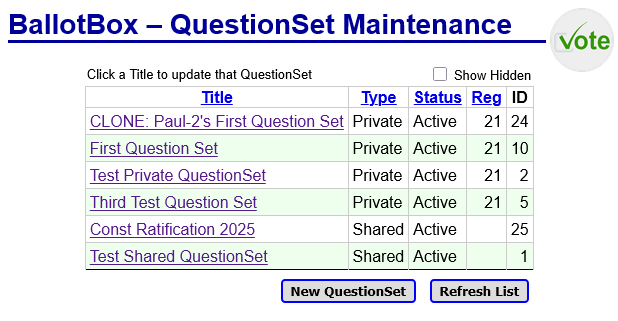
The list displays the following data for each of your QuestionSets.
Most of the column headings on the list are formatted as links. Clicking one of those links will sort the list in ascending order by the values in the cells of that column. The list is initially ordered by Type and Title.
To view or update the properties of a QuestionSet, click the Title of the QuestionSet, which is formatted as a link. That will open a panel on top of the list that shows the QuestionSet properties and allows you to update them. The panel also has a number of buttons to perform management functions. The following sections of this document discuss the contents of that panel and its use in detail.
Below the list of QuestionSets are two buttons:
To return to the Home page, click the "Vote" icon at the top of the list page.
When you click the New QuestionSet button under your list of QuestionSets, the page will open a panel on top of the list. That panel has a number of fields that you fill in to create a new QuestionSet.
The panel that opens when you click the New QuestionSet button below the list of QuestionSets, or when you click the Title cell in the list for an existing one, is termed the "main QuestionSet panel." From that panel you click buttons that open other panels, so calling it "main" distinguishes it from those other subordinate panels.
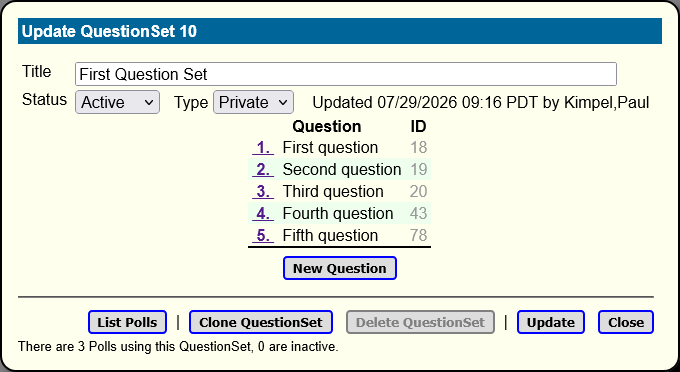
The main panel has the following fields:
After you create a new QuestionSet (see next), it will not have any Questions or Choices yet. See Updating a QuestionSet below for how to add and maintain Questions and their Choices within the QuestionSet.
Below the QuestionSet fields on the main panel are a collection of buttons used to perform various QuestionSet management functions. For the purpose of creating a new QuestionSet, only two of them are relevant, Add New and Close.
The button in the lower-right corner of the main panel will read Add New when you are creating a QuestionSet. Clicking that button will validate the data on the panel and insert the new QuestionSet into the data base. The same main panel is used when updating an existing QuestionSet, but the button instead will read Update and will save your changes. In neither case does the button close the main panel.
The Close button closes the main panel and returns to the list of QuestionSets. If you have made changes to the QuestionSet data that would be lost by closing the panel, the page first requests confirmation that you want to discard those changes. Canceling that confirmation message leaves the panel open.
All of the buttons on the main panel are summarized below and discussed more fully in their respective sections of this document.
Below the buttons is a line of text indicating how many Polls are currently using this QuestionSet, and of those how many are currently inactive. This helps you to quickly see whether the QuestionSet is in use. To see which Polls are using this QuestionSet, click the List Polls button.
To update the data for a QuestionSet, click the QuestionSet's title in the QuestionSet list. The same main panel that is used for creating QuestionSets will open and display the data for the selected QuestionSet. The button in the lower-right corner of the main panel will read Update instead of Add New.
After creating a new QuestionSet, the main panel will automatically change its mode from create to update. The middle of the panel will change to show the list of Questions defined for the QuestionSet, which initially will be empty. Otherwise, the panel shown after creating a new QuestionSet will behave the same as one opened by selecting from the QuestionSet list.
Note: Registrars will be able to update only their own Private QuestionSets. They are not able to make any changes to a Shared QuestionSet created by an Administrator. When opening the main panel and its subordinate panels for a Shared QuestionSet, Registrars will be able to view the QuestionSet, Question, and Choice data, but will not be able to save any changes to it.
There are three types of changes you can make to a QuestionSet:
For more information on adding and updating Questions and their Choices, see Maintaining Questions and Choices below.
Some of the QuestionSet data, such as Questions and Choices, are modified by clicking other buttons at the bottom of the panel. Many of those buttons open subordinate panels on top of the main panel. Any changes made to on those subordinate panels will be saved when you exit those panels. If those changes are the only ones you make after opening the main panel and you have not changed any data on the main panel itself, you do not need to click the Update button on the main panel before closing the main panel.
You can change the title and status of a QuestionSet at any time.
Questions and Choices are the primary components of a Poll's ballot. They describe the issues that are being voted on and define the manner in which the vote can be cast.
A Poll can have any number of Questions. Each Question is associated with a number starting at one. The numbers are intended to be unique, but are not required to be. Questions are always listed in number order, from smallest to largest. If more than one Question has the same number, the Questions with that number are listed in the order they were added to the QuestionSet. By default, the Questions are numbered sequentially, but there can be gaps in that sequence.
A single Question and its Choices are created and updated as a unit. To create a new Question and its Choices, click the New Question button on the QuestionSet's main panel. This will open the following subordinate panel:
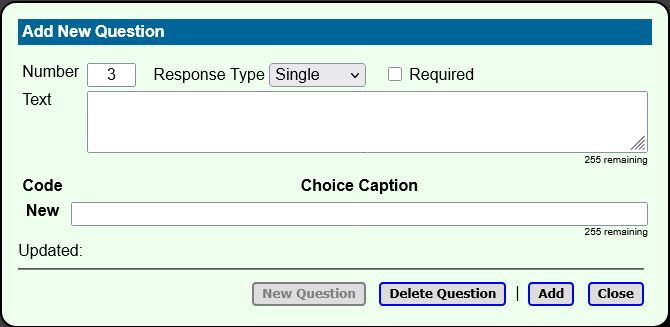
The top of this panel has the following fields:
1 if there are no existing Questions. Otherwise, it is pre-filled with a number that is one higher than the highest-numbered Question for the QuestionSet. Thus, the Questions will be numbered sequentially by default. You can change this default number to some other number if you wish.
The remainder of the panel is used to define the possible Choices (responses) to the Question. Each Choice consists of a one-character code for the Choice plus a description defining the Choice. The code can be a capital letter (A, B, C,..., Y, Z) or a decimal digit (1, 2, 3,..., 8, 9). By default, the codes start with the letter "A" and will increase in alphabetic order. If you want to use numeric codes, you define the first numeric choice with some letter, then change it to a digit. Choices after that will automatically continue in number sequence.
The Choices for a Question are always listed in ascending sequence, first any digit codes in numeric order, followed by letter codes in alphabetic order. Two Choices for the same Question may have the same code, in which case they are listed in the order they were added to the Question.
To add a Choice to a Question, simply enter the text of its description in the text box labeled New under the Choice Caption heading, followed by either a Tab or Enter key. The page will assign your entry a code and display the completed Choice above the New text box, pushing it down a line and clearing the box for your next entry.
Continue in this manner until you have all of the Choices for your Question entered. If you want to change one of the codes or descriptions, simply edit it in its text box. If you define a Question with three Choices, it might look like this when you are finished:
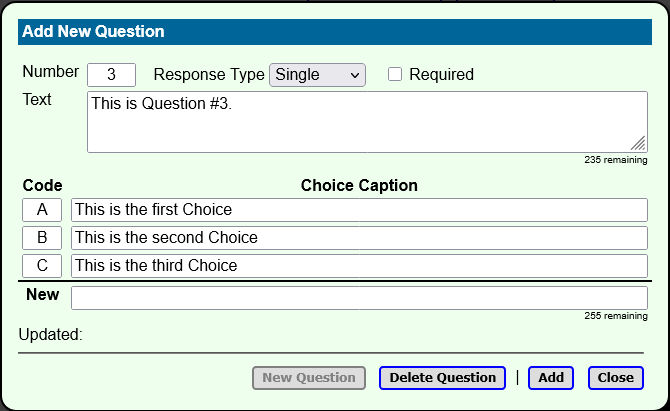
To finish adding this new Question and its Choices to the QuestionSet, click the Add button at the bottom of the panel. Your entries will be stored in the data base and the panel will be refreshed, with the Add button changing to Update.
Once you have added a Question to a Poll, You can continue to modify the Question and its Choices, including adding new Choices, as discussed next.
As you add Questions to your QuestionSet, they will be listed on the main panel. To modify an existing Question, click the Question's number on the main panel, which is formatted as a link. The same Add/Update panel will open for the Question, allowing you to modify the Question and its Choices as discussed above.
You can change any of the fields on the Add/Update panel, including the Question number and the letter/digit codes for the Choices. Simply replace the existing field values with new ones.
To delete a choice from a Question, you can either change its code and description to turn it into a new Choice, or you can delete the text of its caption (description) to remove it entirely. Click the Update button to save the change in the data base.
To change the order in which Questions will appear on a ballot, or the order in which Choices will be listed under a Question, you will need to change the Question number or Choice code. Since Questions are always listed in order by their number and Choices are listed in order by their code, changing these will change the order in which they appear on the ballot.
In cases where the necessary rearrangements are complex, it may be necessary to temporarily label a Question or Choice with a number or code that is already in use and make the changes in multiple steps. That is not a problem, although to avoid confusing the Voter, it is highly desirable that when you are through each Question has a unique number and each Choice within a Question has a unique code.
When you have finished making changes, click the Update button on the Add/Update panel to save your work. If you have deleted any Choices or changed the codes of any of them, that list will be reordered to place the current set of Choices in ascending sequence by their codes. The panel will remain open until you click the Close button.
Once you finish all work on a Question, you have two alternatives:
To delete a Question from the QuestionSet, click the Question's number on the main panel, and then on the resulting Add/Update panel, click the Delete Question button. Confirm that you wish to permanently delete the Question. The Add/Update panel will close and the main panel will refresh to show the remaining Questions.
The purpose of QuestionSets is to allow one definition of a ballot to be shared among multiple Polls, possibly across multiple Registrars. Changes to a QuestionSet will therefore affect all Polls to which that QuestionSet is assigned. Because of that, it is useful to be able to know which Polls are using a given QuestionSet.
At the bottom of the main panel for a QuestionSet is a button, List Polls. This button will be grayed out and disabled if the QuestionSet has not been assigned to any Polls. Otherwise, clicking this button will display information for all of the Polls to which the QuestionSet is assigned.
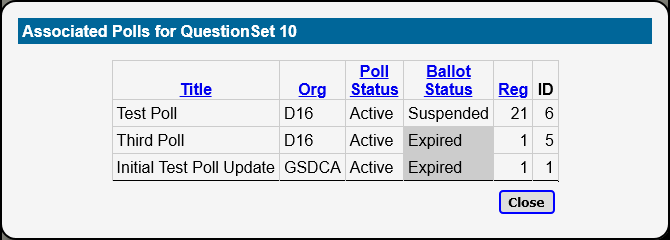
This list is similar to a Registrar's Poll List and has many columns in common:
This panel only displays information – there are no actions you can take with it except to close it when you are finished examining its data.
New elections or surveys are often similar to prior elections or surveys, having only some changes to the prior Questions and Choices in the QuestionSet. It would be nice to have a way to make a copy of an existing QuestionSet so it can be modified for use by another Poll. In addition, while Registrars can assign any shared QuestionSet to one of their Polls, they cannot make changes to a Shared QuestionSet. Therefore, it would be useful to be able to make a copy of a shared QuestionSet as a new QuestionSet so that a Registrar can modify it.
On the main panel for a QuestionSet, there is a button at the bottom of the panel, Clone QuestionSet. To make a copy of that QuestionSet, simply click that button and confirm that you want to make the copy.
The system will create a new, Private copy of that QuestionSet, as well as a copy of all of the Questions and Choices for that QuestionSet. The new QuestionSet will have the same title as the original one, but prefixed by "CLONE:". Once the copy is made, you can update the new QuestionSet in the same manner as for any other QuestionSet. You can change the initial title of that new Question set to be whatever you want. You can also edit the existing Questions and Choices, as well as add and delete Questions and Choices in that new QuestionSet.
There is no restriction on the number of times you can clone an existing QuestionSet as a new one. There is also no restriction on cloning previously-made clones. Once created, a cloned QuestionSet acts like any other QuestionSet.
Any Private QuestionSet can be deleted, subject to some restrictions. A Registrar can delete any of their Private QuestionSets. Only Administrators can delete Shared QuestionSets.
A QuestionSet can be deleted if it meets all of the following criteria:
These restrictions are intentionally designed to be somewhat inconvenient and to protect the integrity of the data for existing and past Polls and ballots.
To delete a QuestionSet, click the Delete QuestionSet button at the bottom of the main panel for the QuestionSet. This button will be grayed out and disabled if the QuestionSet is Shared or if it has any Questions defined. Otherwise, the page will display an alert for you to confirm that the QuestionSet should be deleted. If you confirm the deletion, the system will verify that the QuestionSet meets all of the necessary criteria, and if so, will delete the QuestionSet.
Revised 2026-08-08